A prescription reader for Android that prepares reminders for you to check.
NextDose can use a prescription photo to prepare a medicine and reminder draft. It does not turn an image into automatic instructions: you review the medicine details, correct anything unclear, and confirm the plan before reminders start.
What a prescription reader should do
A useful prescription-reading feature saves setup time, but it should keep the written instructions and your own review in charge. In NextDose, a photo starts a draft. You can inspect each medicine name, strength, quantity, schedule and end date before any reminder plan is saved.
This is especially helpful when there are several medicines or different times in one prescription. It is not a tool for deciding what a handwritten instruction means medically, and it does not replace a clinician or pharmacist.
From prescription photo to confirmed reminders
Add a clear photo
Choose Take a photo or Choose a photo in NextDose. Make sure the text is readable and use the in-app AI-processing notice before sending a photo for reading.
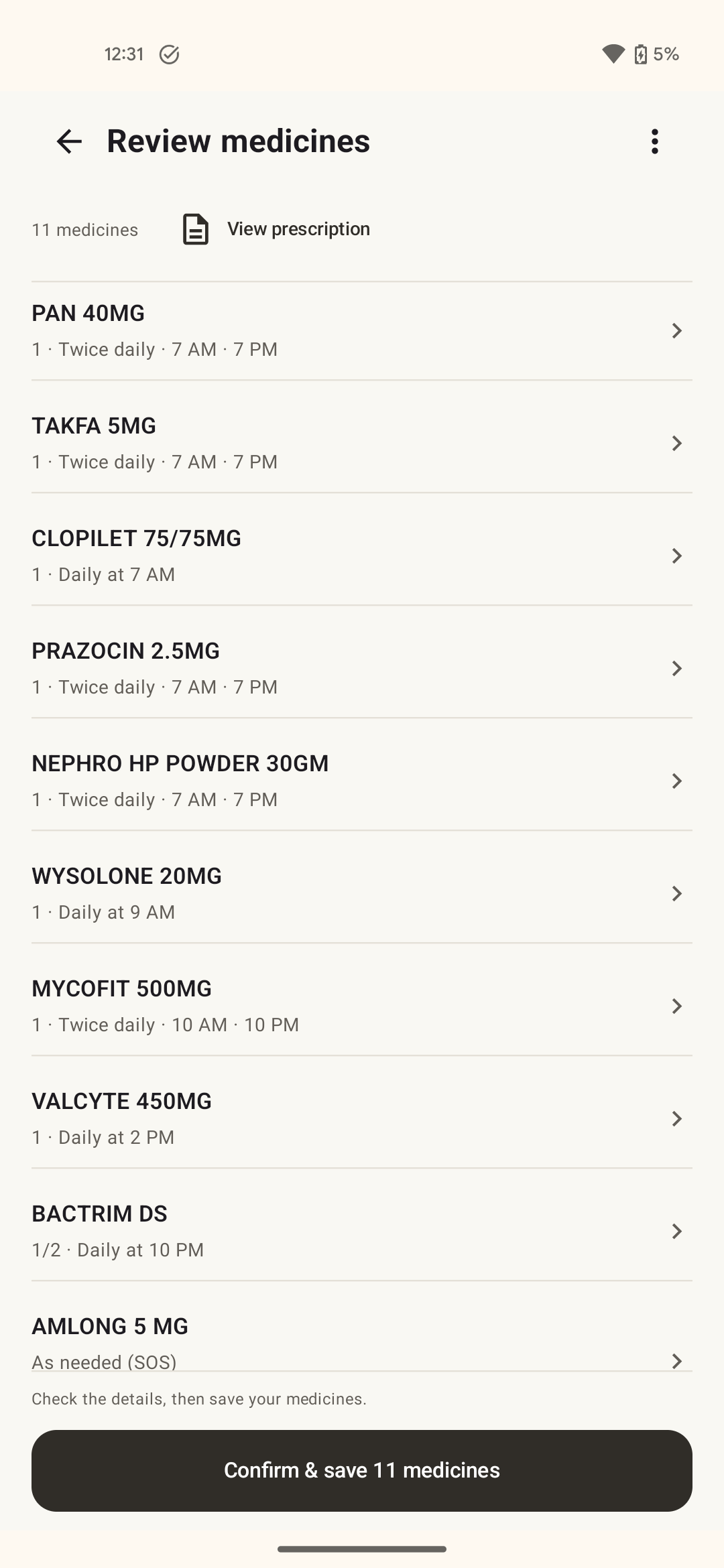
Open the draft and check every row
NextDose prepares medicine entries from the details you submitted. Compare each entry with the prescription. Edit or delete anything that is wrong, incomplete or not intended for your plan.
Confirm only the reminders you recognise
Use Confirm & save after the full list looks right. That is the moment a draft becomes your reminder plan; reading a photo alone does not activate reminders.
If the prescription is unclear, do not fill in the gaps
Photo reading can be imperfect, especially with handwriting, a blurry image, abbreviated directions or a partial photo. If you cannot confidently verify a detail from the prescription, leave it out of the reminder plan until you can confirm it with the prescriber or pharmacist.
NextDose does not diagnose conditions, recommend a dose, decide when an as-needed medicine is appropriate, or resolve conflicting instructions. The app helps organise the plan you choose to confirm.
You can always enter medicines manually
Choose manual entry when you do not want to use a prescription photo, when the written instructions are difficult to read, or when you only need to add one medicine. Add the name, schedule and reminder details that apply to you, then review the entry before saving.
If instructions later change, you can edit the affected medicine or tell NextDose what changed to prepare another draft. Check the updated details before you save them. See how to update medication reminders after a dose change.
See the plan before it becomes a reminder.
Use a photo or manual entry, then check and confirm the details yourself.
Get NextDose on Google Play (opens in a new tab)