When your dose changes, update the reminder plan—not your prescription.
A reminder app should reflect new instructions after you have them confirmed. It should not guess at a dose change or treat an old reminder as medical advice. In NextDose, you can edit the affected medicine or ask the app to prepare an update, then check every detail before you save it.
Start with confirmed instructions
A changed dose, time or course length is something to clarify with the prescriber or pharmacist if the written instruction is not clear. Do not try to infer the intended schedule from an old medicine plan, an expired prescription photo or a reminder that is already on your phone.
Once you have the right instructions, a reminder tool can help you replace the old plan. It should not decide whether a change is correct, whether a medicine should be stopped, or how an as-needed medicine should be used.
Update only the affected reminder
Open the medicines area
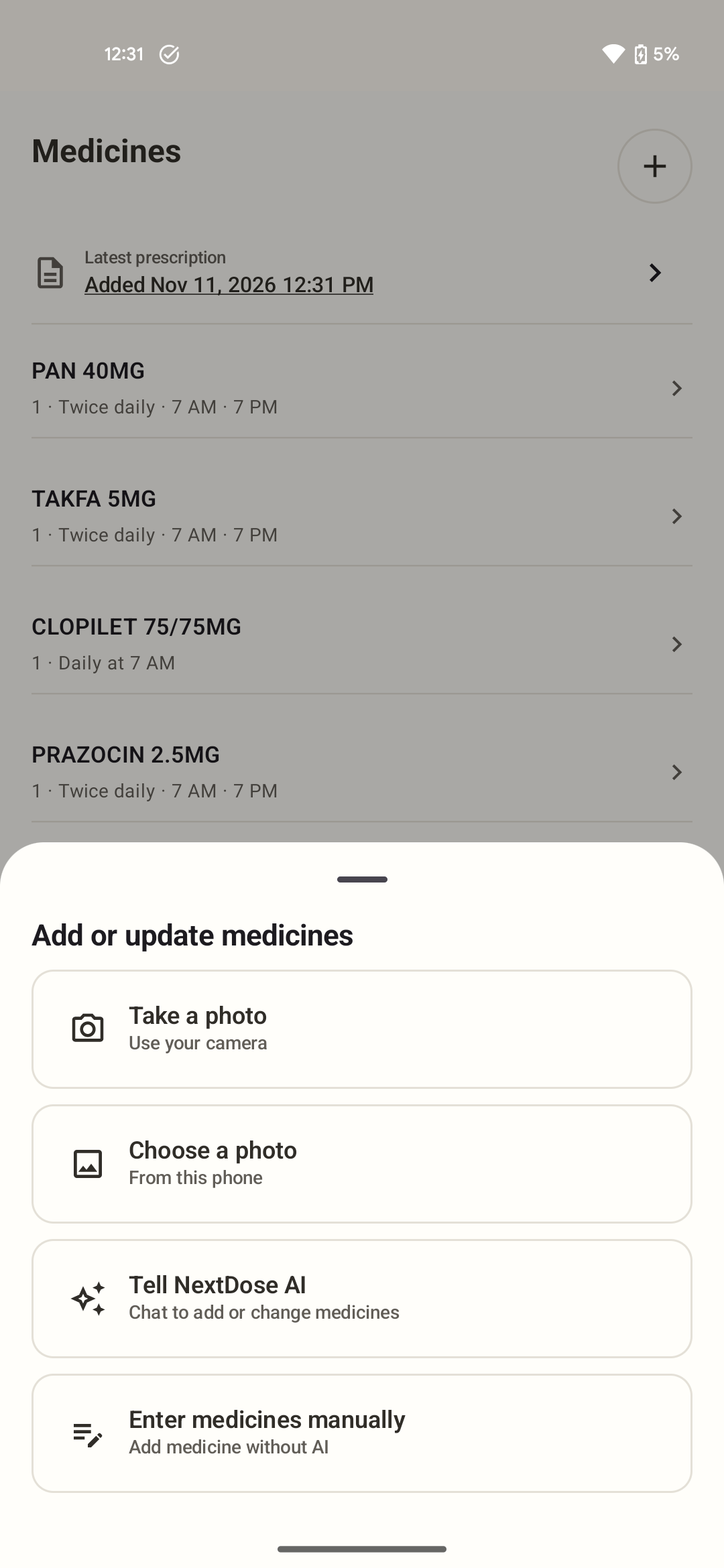
Use the add control in NextDose to open Add or update medicines. You can take or choose a new prescription photo, tell NextDose about the change, or enter the details manually.
Choose the clearest way to describe the new instruction
For a simple correction, edit the medicine manually. If you use a photo or message, NextDose prepares a draft from the information you provide. It does not silently change the saved plan.
Keep unrelated medicines unchanged
Review which entry you are changing. Do not add duplicate medicines just to create another alarm time; update the existing entry when it represents the same medicine.
Check the new plan before saving
Compare the affected entry with the current instructions. Check the medicine name and strength, quantity, every reminder time, recurrence pattern and any end date. Then inspect the rest of the list for an old copy or an old time that would leave duplicate reminders behind.
NextDose supports multiple daily times, weekly and alternate-day schedules, and confirmed end dates. Confirm the updated plan only when those details match what you were told.
Use Today to spot old timings
After saving, open Today and make sure the upcoming entries match the plan you confirmed. The page can show what you marked Taken and what is still due. A Taken record is a record of your tap, not independent proof of a dose, so do not use it to resolve uncertainty about whether you took medicine.
If you cannot safely represent the new instruction in the app, use another suitable reminder method and ask a pharmacist or prescriber to clarify the plan.
Update the reminder. Keep the review.
Tell NextDose what changed or edit it yourself, then check the updated plan before saving.
Get NextDose on Google Play (opens in a new tab)