How to set medicine reminders on Android
To set medicine reminders on Android with NextDose, sign up, add a prescription photo or enter medicines manually, check every detail, and confirm the reminders. Then allow the Android notification and alarm access the app requests.
When a clock alarm is enough, and when it gets awkward
A labelled clock alarm can work for a simple routine. The extra work starts when several medicines have different daily times, one course ends before another, or you cannot remember whether you acted on an alarm.
A clock alarm tells you that a time arrived. NextDose connects the reminder to a medicine and lets you record that you took the dose. It also keeps the daily plan together, so you can review what is due instead of maintaining a separate collection of alarm labels.
Set up NextDose in four steps
Sign up
Install NextDose from Google Play and sign in with Google. Keep your current prescription available while you set up the plan.
Add your prescription
Choose Take a photo or Choose a photo. Check that the names and directions are visible, then select Read this photo. AI processing requires your agreement. You can choose Enter manually instead.
Check and confirm reminders
Open each medicine in Review medicines. Compare the name, strength, dose, instructions, daily times and any end date with your prescription. Correct mistakes and confirm the plan. A suggested time is something to check, not a new dosing instruction.
Allow alerts and check Today
Follow the app’s prompts for notifications, full-screen access and Alarms & reminders. Check the saved daily timeline in Today. Resolve any reminder-access warning before relying on alerts.
For a closer look at the photo and review steps, see how to add medicines from a prescription.
What to do when a reminder appears
For a single medicine, the notification can offer I took it and, when available, Remind in 10 min. Record Taken after you have taken the dose. Snooze asks for another alert; it does not record that the medicine was taken or change the prescribed instructions.
When several medicines are due together, open the reminder and review each medicine. You can also open Today to check the saved dose state or undo an accidental Taken tap.
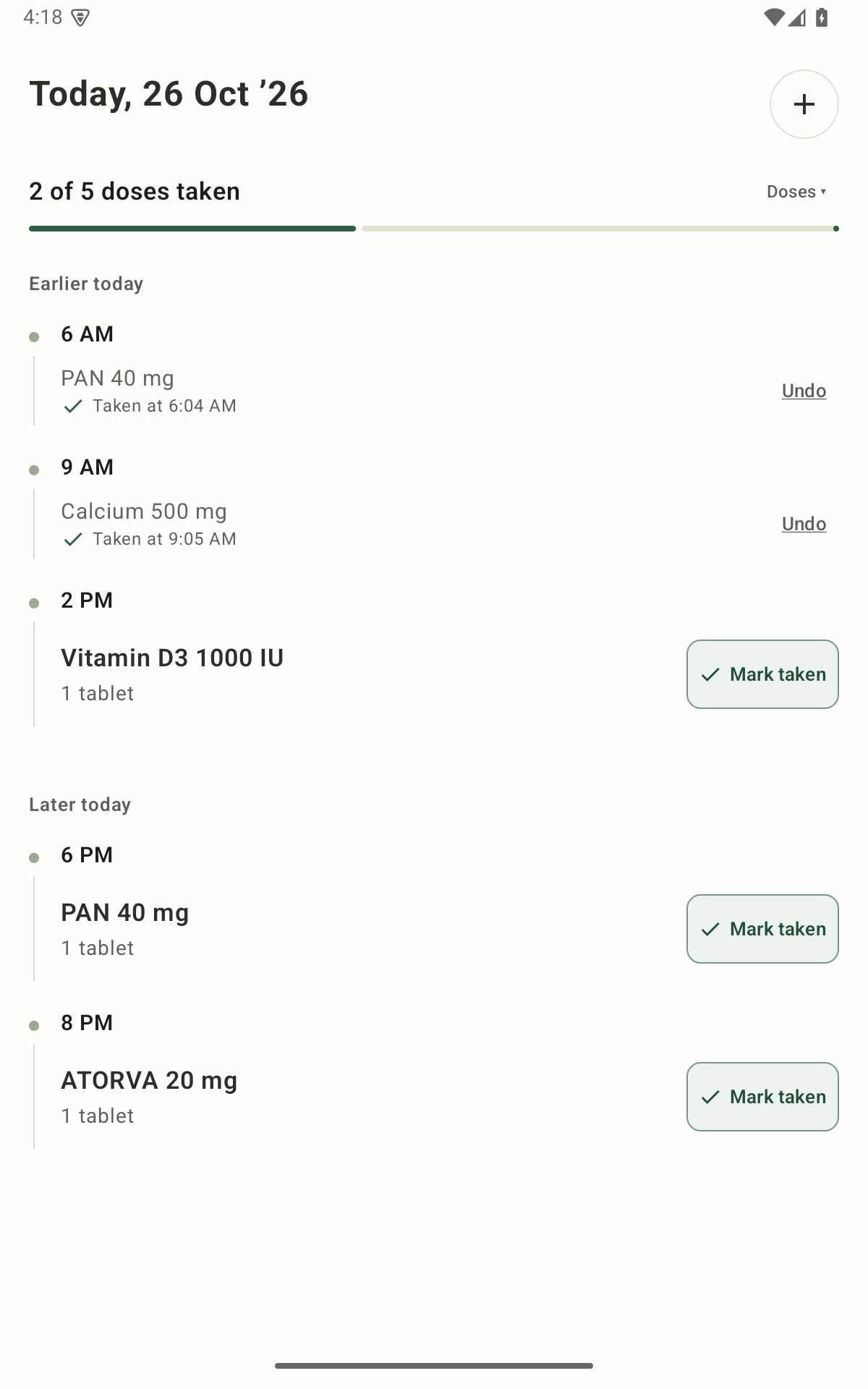
Check the schedule and Android settings
NextDose supports multiple reminder times per day, weekly and alternate-day schedules, and user-confirmed course end dates. Match each medicine’s schedule to your prescription. Read the multiple-medicine guide for help organising several medicines in one plan.
Full-screen alarms use an alarm sound, but Android permissions and device settings affect delivery. Android may show a banner while the phone is unlocked. If an alert does not appear, check notification access, Alarms & reminders, the chosen reminder style, and any battery restrictions shown by your phone.
NextDose is free and ad-free. It is a reminder and record-keeping tool; it does not decide what you should take or guarantee that every alert will reach you.
Start with the plan you already have.
Add your medicines, check the details and confirm your daily reminders.
Get NextDose on Google Play (opens in a new tab)