How to add medicines from a prescription
NextDose turns a prescription photo into a draft, not an automatic medicine plan. The workflow is: sign up → add a prescription → check and confirm reminders → receive alerts. You must verify the AI-extracted details before reminders start.
Before you begin
Use your current prescription, with the medicine names and directions readable. Photograph the whole relevant section in good light. If a line is blurry, cut off or unclear, get a clearer source or ask your pharmacist or prescriber to explain it. An AI draft cannot resolve uncertain handwriting safely on your behalf.
Keep the original available during review. The goal is to reproduce the instructions you already have, not to ask the app to choose a medicine or dose.
The four-step prescription workflow
Sign up in NextDose
Install the Android app and sign in with Google. If you already have a plan, use the add control to open Add or update medicines.
Add the prescription
Select Take a photo or Choose a photo. On Check the photo, make sure the directions are visible. Read the AI-processing notice and agree if you want to use it, then tap Read this photo. The submitted information goes to NextDose’s service and Google Gemini for processing.
Review, correct and confirm
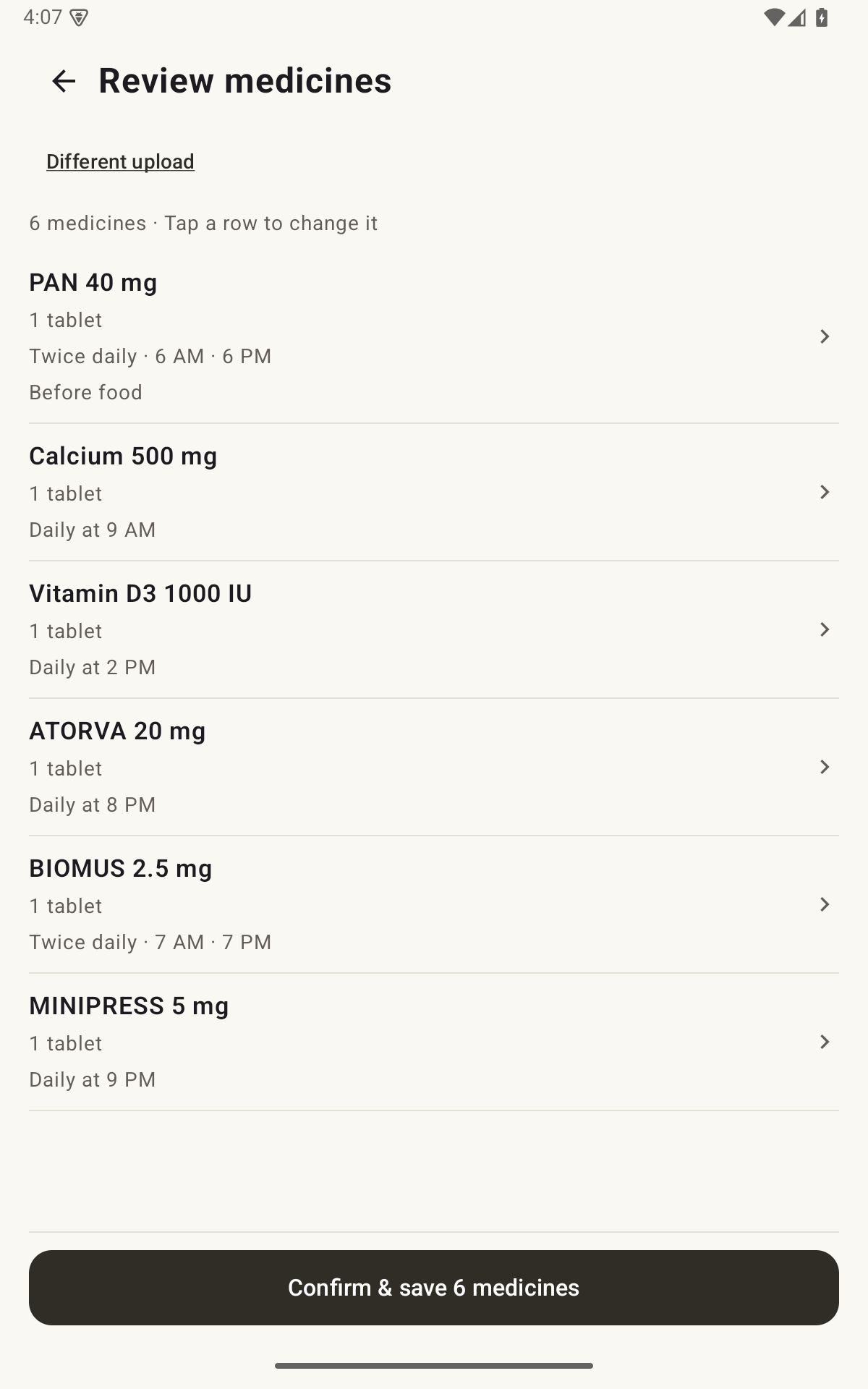
On Review medicines, tap each row to inspect the details. Compare it with the prescription, correct any error, and confirm the medicine. Check the whole list before using Confirm & save. Reading a photo alone does not activate its draft.
Receive alerts from the confirmed plan
Complete the Android notification and alarm-access prompts. Open Today to check that the medicines and times you confirmed appear. Respond to reminders and record Taken only after taking the dose.
What to check in every medicine row
- Name and strength: check the exact medicine and any strength shown.
- Dose quantity: compare it with the written instructions; do not infer a quantity from the strength alone.
- Frequency and times: make sure the number of daily reminders matches the instructions. Review any suggested times.
- Food or other instructions: check these against the source, rather than accepting an AI interpretation without reading it.
- End date: a limited course needs a confirmed end date. Do not silently turn it into an ongoing routine.
- Duplicates: one medicine taken several times daily should have those times on its own entry, rather than duplicate entries.
If the photo reading is wrong or unavailable
Correct the affected medicine before confirming. You can replace a poor photo, retry reading, or use Enter manually to add the details without AI. Manual entry still needs a review of the instructions and schedule.
NextDose supports multiple daily times, weekly and alternate-day schedules, and course end dates. Before confirming, check the recurrence pattern as well as the times and any end date against your prescription.
If you are unsure what the prescription says, ask a clinician or pharmacist before confirming. See managing multiple medicines and changes for the routine after setup.
Start with the plan you already have.
Add your medicines, check the details and confirm your daily reminders.
Get NextDose on Google Play (opens in a new tab)