How to manage multiple medicines and changing schedules
Keep one checked entry per medicine, put its prescribed daily times on that entry, and review the combined Today timeline. When instructions change, edit the existing plan and confirm the change instead of adding a second copy of the old medicine.
Build one plan you can actually review
The hard part of several medicines is often the relationship between them: different daily times, an instruction beside one name, and a short course that ends while the others continue. Separate clock alarms leave you to keep those relationships straight.
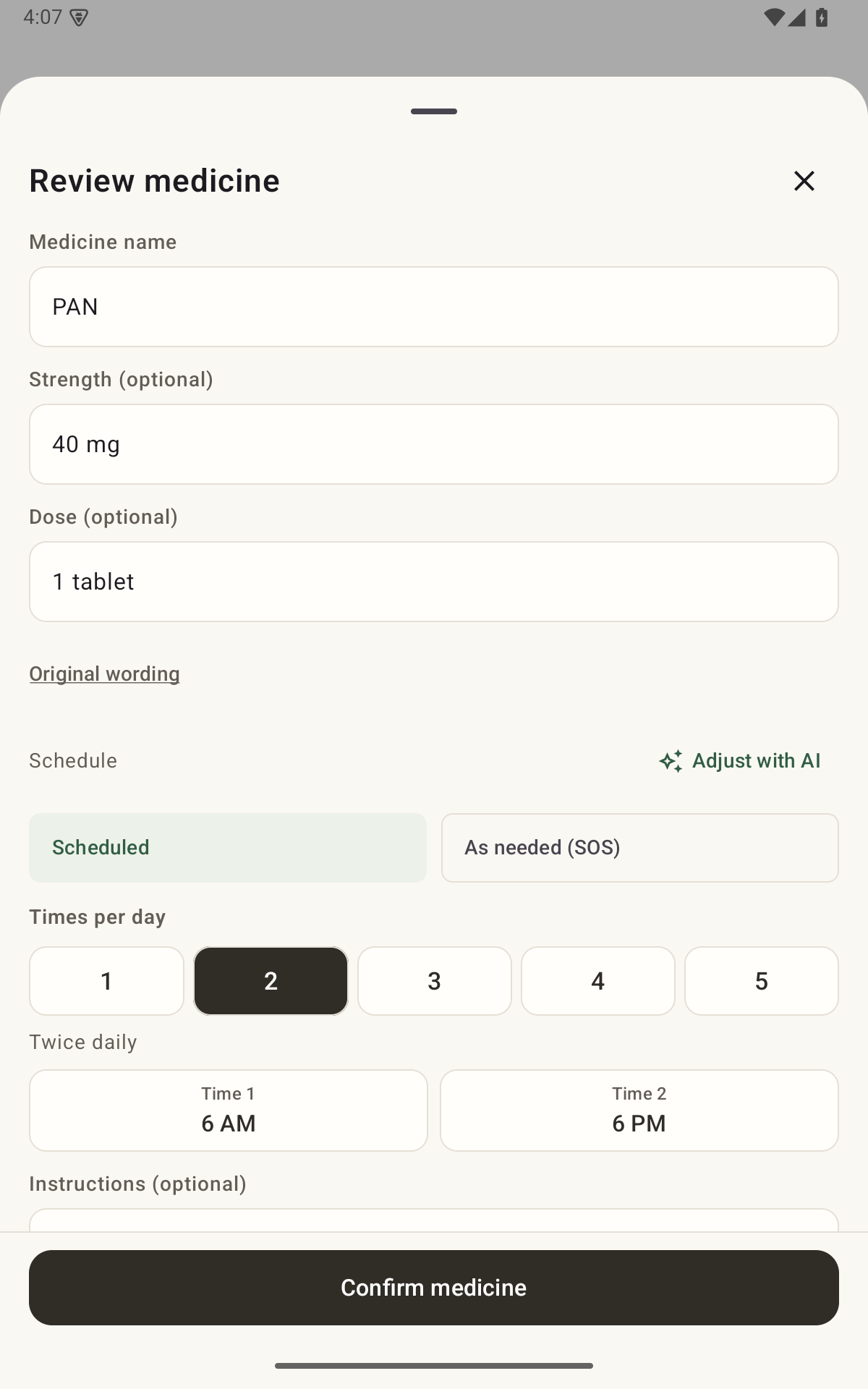
Start with the current prescription. In NextDose, add a readable photo or enter each medicine manually, then check the draft. Put multiple daily times on the same medicine entry. Do not create a new copy of the medicine for each alarm time.
A practical check is to work through the list in prescription order, confirm each medicine, then read the saved Today timeline in time order. Those two views help you catch an omitted medicine or an extra reminder without changing the prescribed routine.
Use the daily timeline medicine by medicine
Review what is due
Open Today and check the medicines at each time. Several medicines due together can share an alert, but they remain separate entries.
Record what you actually took
Use Taken for the relevant occurrence after taking it. Leave other medicines unresolved if you have not taken them. Snooze requests a later alert where available; it is not a Taken entry.
Check records when you are unsure
Look for the saved Taken state and recorded time. An unrecorded entry is uncertainty, not proof of a missed dose. See how to read the dose record.
When your prescription changes
Start from the new instructions
Identify which medicine, quantity, daily times, instruction or course end date changed. Ask your pharmacist or prescriber to clarify anything unclear.
Edit the existing medicine
Open the medicine in your plan and change the relevant fields. You can edit manually or describe the prescribed change with Adjust with AI. An AI proposal still needs your review.
Compare before confirming
Check the name, strength, dose, each daily time and any end date. Confirm the medicine and save the plan. Then inspect Today again for duplicates or an old time left behind.
If NextDose blocks an edit because that dose was already marked Taken today, keep that protection in place. Do not delete and re-add the medicine to bypass it. If the new instructions must apply immediately and the app cannot represent them, use another suitable reminder method and ask a pharmacist or prescriber if the instructions are unclear.
Which schedules can NextDose represent?
NextDose supports multiple daily reminder times, weekly and alternate-day schedules, and a confirmed end date for a limited course. As-needed medicines can be recorded without timed reminders; the app does not choose when an as-needed dose is appropriate.
Check the saved recurrence, times and end date against your prescription. AI extraction creates a draft for you to review; it does not confirm that a schedule is correct.
NextDose organises the plan you confirm. It does not reconcile conflicting prescriptions, decide which medicine to stop, or provide dosing advice.
Start with the plan you already have.
Add your medicines, check the details and confirm your daily reminders.
Get NextDose on Google Play (opens in a new tab)